The Firefox Search Bar in the upper-right corner, sitting next to the address bar, is one of the most frequently used feature inside Firefox.
You can do a lot of tweaking to the Firefox search bar like Add new search engines, delete unused search engines, change the order of search engines, delete autocomplete, change the default search engine or even resize the width of the search bar. We discuss each tip in detail here (also applicable to Flock):
How to add a new search engine to Firefox search bar ?
The Firefox Search bar comes pre-loaded with Google, Yahoo, Amazon, eBay, Answers.com, and Creative Commons search. If you'd like to add more search engines to the search bar, click on a search engine name here or browse the full directory of search engine plug-ins at mycroft. Alternatively, click the down arrow next to the G in the search box, and choose Add Engines.
How do I remove a search engine from Firefox search bar ?
To Uninstall a Firefox search plugin, open the searchplugins folder situated in the Mozilla Firefox 1.5 installation directory (C:\Program Files\Mozilla Firefox\). Sort the entire folder by name so that files selected with any search engine stay together at one place.
Delete both .src and .gif or .png search plugin files for the search engine you want to remove. For example, to remove the eBay search engine, you would delete the files "ebay.src" and "ebay.gif". Restart Firefox and the search engine will be deleted forever. Any custom search engines may be located in the Firefox Profile folder inside Windows Application Data folder.
There's even a Firefox extension for uninstalling Firefox search plugins - just right click on a search plugin and choose Delete.
How do I rearrange the order of search engines in Firefox ?
Search engines are added to Firefox search bar at the bottom. As your list of search engine grows, you may want to sort the order and place the maximum used search engine at the top. Here's how change the order in which the engines are shown in the Firefox search bar.
Type about:config in the Firefox location bar.
Type browser.search.order in the filter.
Now change the values as you wish to reorder.
For example, to make Yahoo as the top engine and Google just next, make the following changes:
browser.search.order.1 = Yahoo
browser.search.order.2 = Google
The other easy option to change the order is download Search Plugin Manager that lets you re-sort the search plugin list in the Mozilla Firefox browser as well as rename, edit, delete or hide search plugins.
Search Engine Ordering is another related search bar plugin that lets you even create new firefox search plugins beside installing, deleting or arranging existing ones. Just Drag-n-Drop to change the order as you want or right click somewhere in the menu to sort them alphabetically.
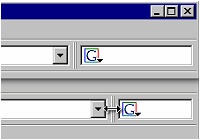 How do I resize the Firefox Search Bar ?
To change the width of the Firefox Search bar, you can either download the resize search box firefox extension or do it manually. Add the following lines of code to userChrome.css file located inside the chrome folder of Firefox profile directory.
/* Make the Firefox Search box flex wider */
#search-container, #searchbar {
width: 400px !important;
}
This is much easier if you get the chromEdit extension, which allows you to edit userChrome.css, userContent.css or user.js, without the hassle of finding your profile.
How do I delete autocomplete entries (history) inside the Search Bar ?
The Firefox search bar and some form fields on web pages have autocomplete dropdowns that appear with a list of previously-entered data. To delete individual entries, Click on the text area, press down to activate autocomplete, highlight the entry you want deleted, and press Shift + Delete.
You can clear the previous searches from the Search Bar. Just right-click it and select "Clear Search History".
You can disable the display of autocomplete entries by adding the following lines to userChrome.css
/* Remove autocomplete dropdown */
#PopupAutoComplete > .autocomplete-tree { display: none !important; }
How do I customize a search engine plugin in 30 seconds ?
Say you have already installed a search plugin that uses www.google.com. You want to change the default behaviour so that the same plugin now searches using www.google.co.in or google.es if you are in Spain.
Open the searchplugins folder located inside the Firefox installation directory. Open the file google.src with a text editor like notepad and make a simple change in the following line
action="http://www.google.com/search"
change this to..
action="http://www.google.co.in/search" or
action="http://www.google.es/search"
Save the file, quite notepad and restart Firefox.
Using the Firefox Search Bar - Keyboard Shortcuts
To search, click in the Search Bar (or press "Ctrl+K") and start typing. Hit "Enter" and your search will be run. You can use "Alt+Enter" to open search results in a new tab.
The Search Bar supports more than one search engine. To see the list of available engines click the icon at the left of the bar, and a list showing the choices will appear. You can also use "Ctrl+Up"/"Ctrl+Down" to cycle between the available choices.
How do I auto-resize the Firefox search bar as I type
The Searchbar Autosizer Firefox Extension makes the searchbar fit its contents. It auto expands the searchbar if needed, and shrinks it if you don't have anything typed in you'd probably want to read.
This is especially useful, when the URL- and Searchbar share the same toolbar, so that both can be as wide as possible - but it works in every toolbar.
How do I create my own search engine plugin for Firefox search bar ?
Technically, a search plug-in is a text file that describes the information to send to a search engine and how to interpret the results. A small icon completes the plug-in so that search plug-ins are easily recognized. If you want to know more, read the documentation.
Even O'Reilly has detailed tutorial on creating a Firefox search plugin from scratch. They create a search plugin to search inside the Whitehouse website. More instructions here.
Though the Google Toolbar for Firefox provides a similar search box, it is not as versatile or customizable as the native Firefox search engine toolbar. If the drop down search engine bar in firefox is not working, try clearing the Firefox searchplugins folder and add your favorite search engines again from mycroft search plugins database.


 How do I resize the Firefox Search Bar ?
